
How to Use Machi Photo Bin
With Machi Photo Bin, creating ID photos is simple.
Step 1 Take a photo
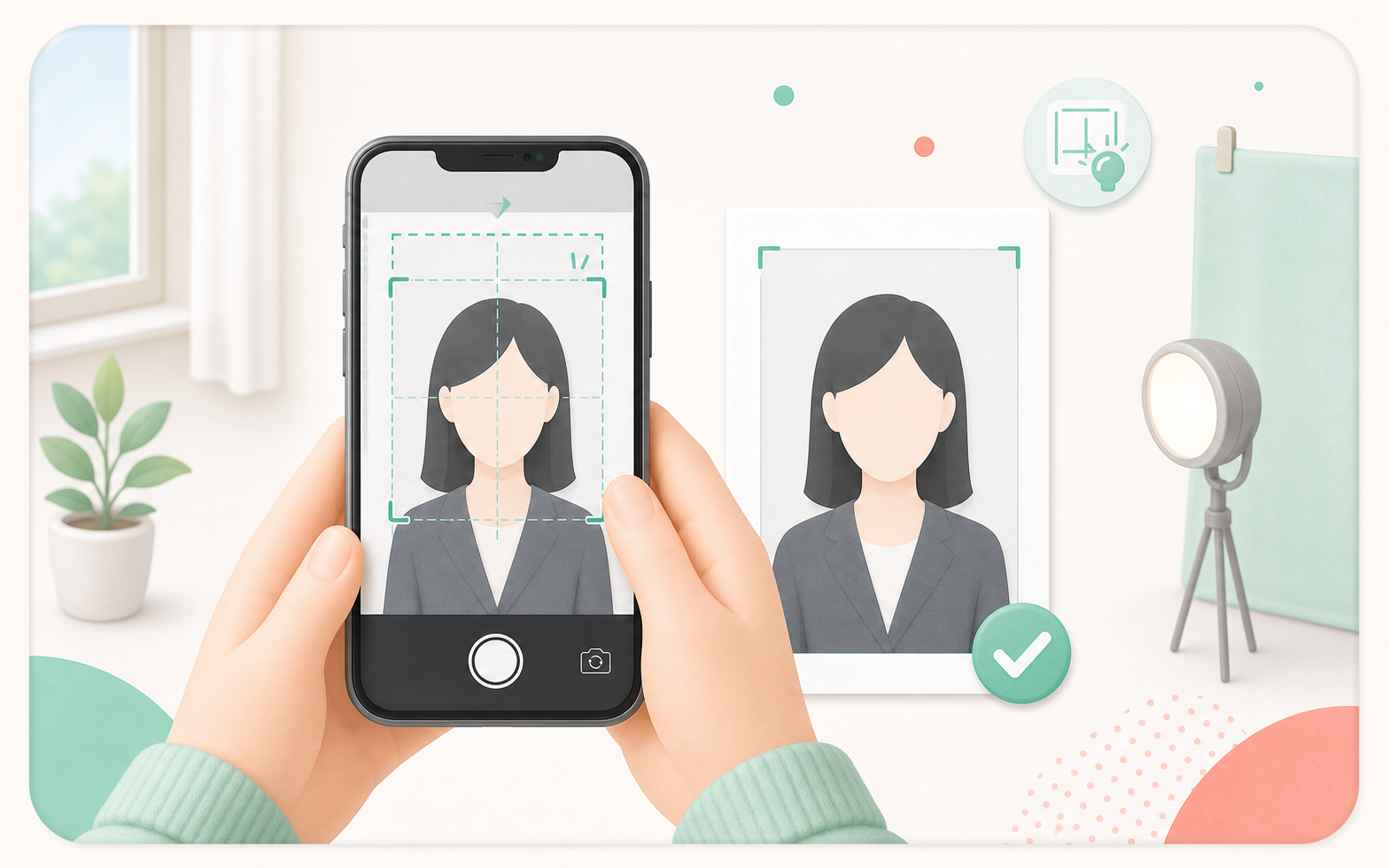
Take a photo with your smartphone.
You can also use photo data taken at a studio or with a digital camera.
Leave enough margin around the head for cropping.
Use a plain wall background because the background cannot be changed here.
Step 2 Register the photo
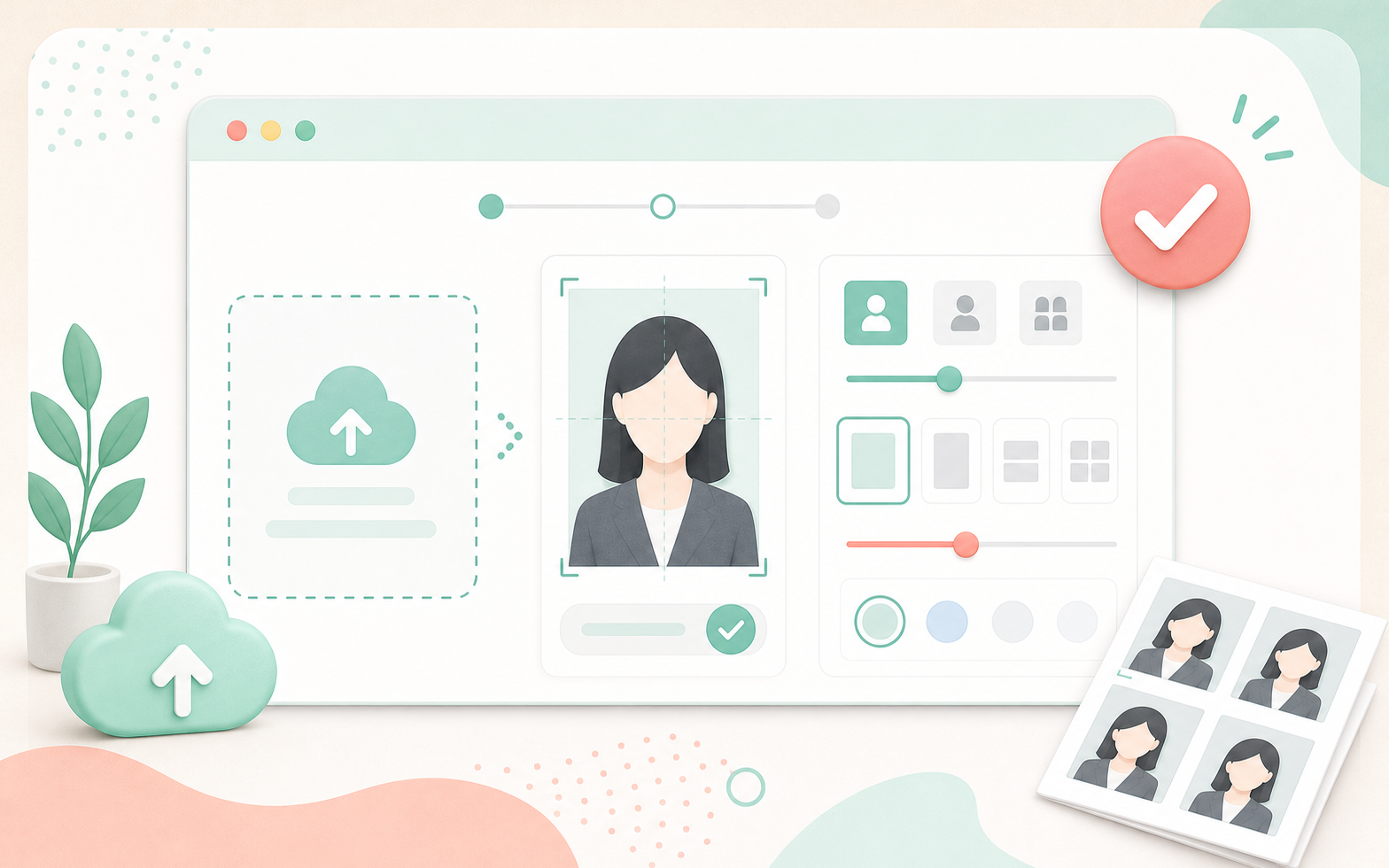
Choose the ID photo size and upload your photo.
Step 3 Receive QR code or print number
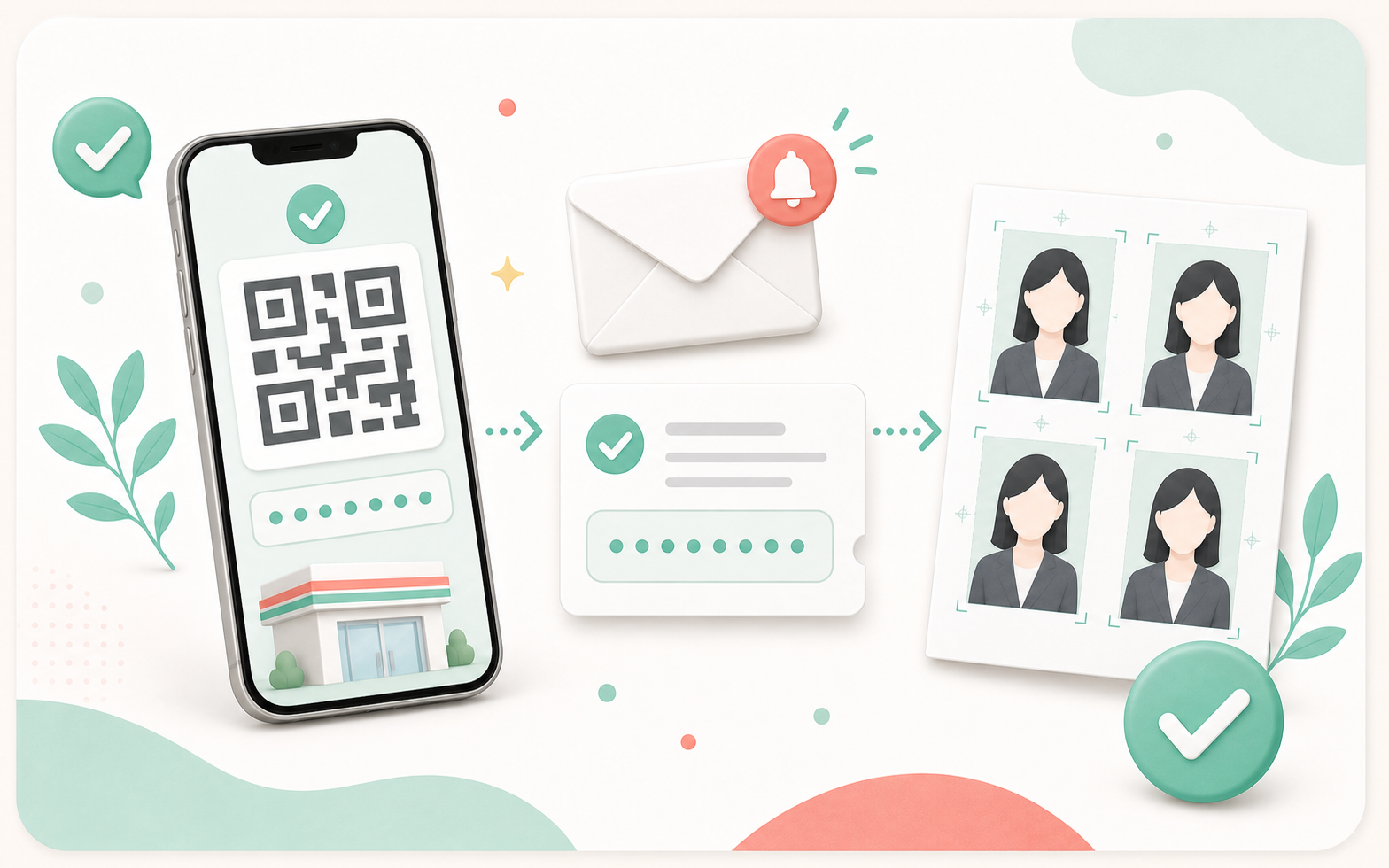
Check the QR code or print reservation number on screen and by email.
7-Eleven and other convenience stores use different print reservation numbers.
Step 4 Print at a convenience store
Create ID photoHow to print at 7-Eleven
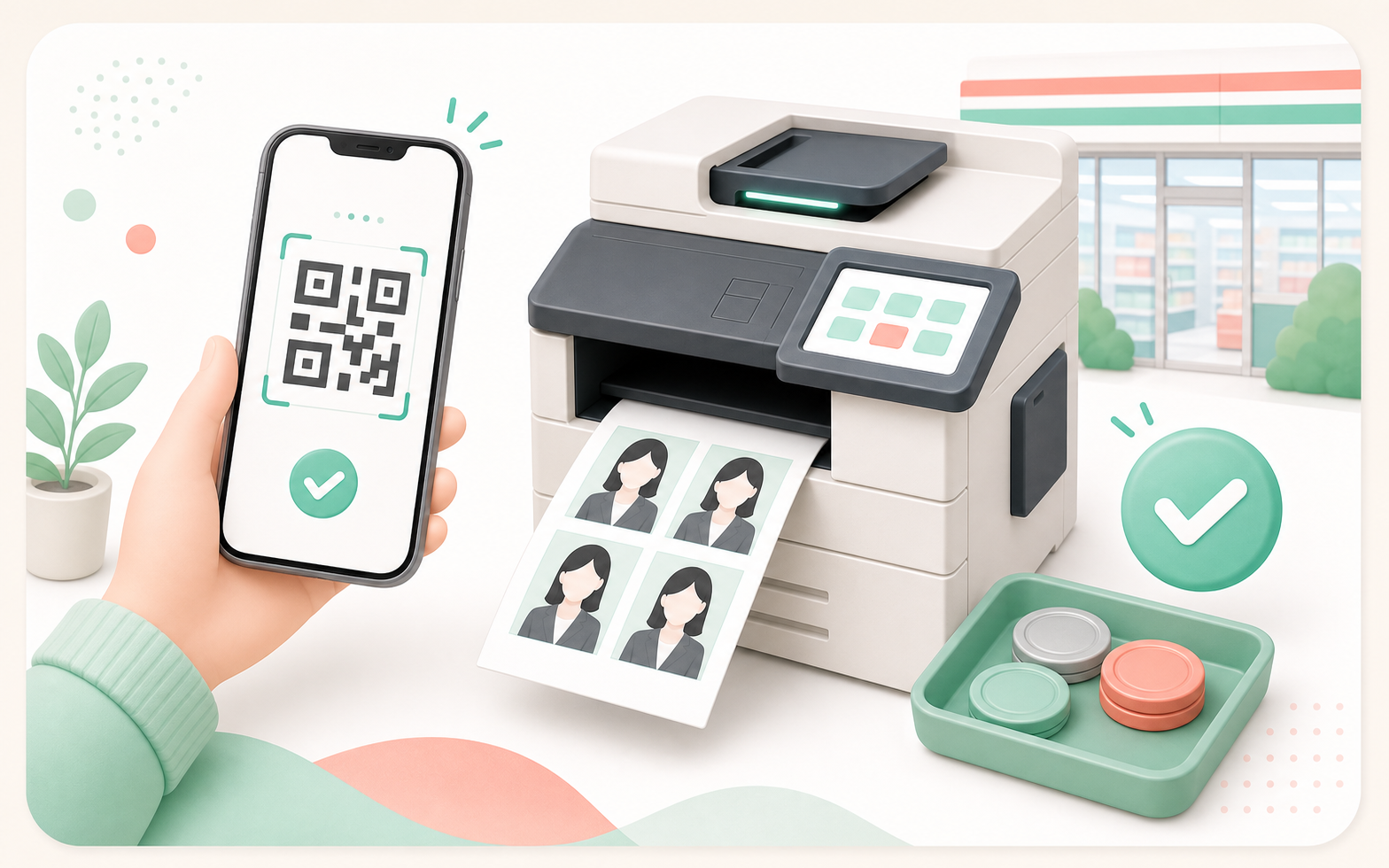

Print with QR code
- Hold the QR code over the reader on the multi-copy machine.
- Confirm the print details and fee on the screen.
- Insert the fee and press print start.
How to print at Lawson, FamilyMart, and Ministop



Print with QR code
- Choose the QR code option on the multi-copy machine.
- Select the paper and product you want to buy.
How to print at Poplar, Seicomart, and Daily Yamazaki
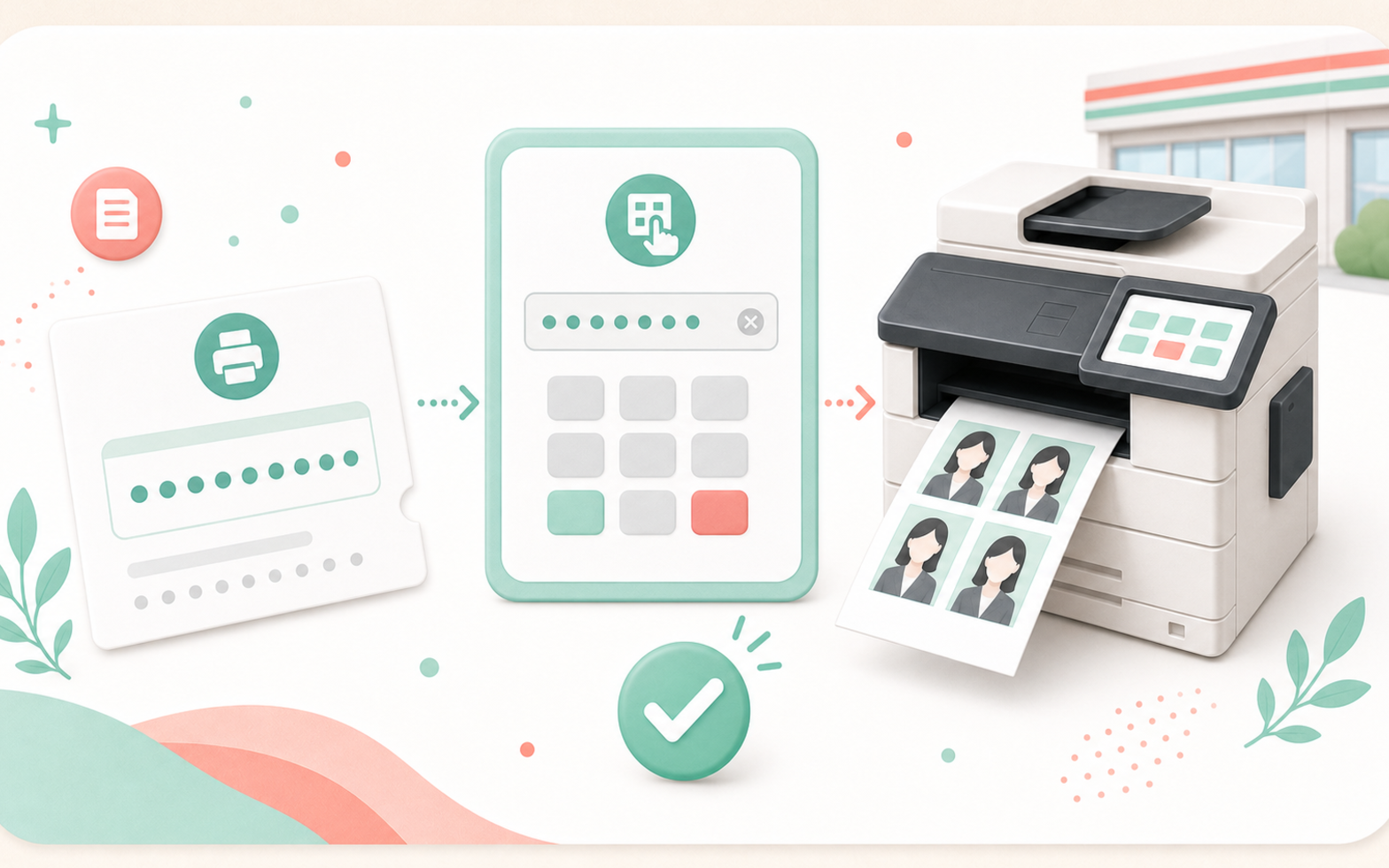



Print with reservation number
- Choose the content service on the multi-copy machine.
- Enter the print reservation number, insert the fee, and start printing.
- QR code printing is not available at these stores.